
A developer or Webflow agency may ask you for your Webflow read-only link, it’s usually so they can investigate a problem, review your website or understand what’s involved in making changes.
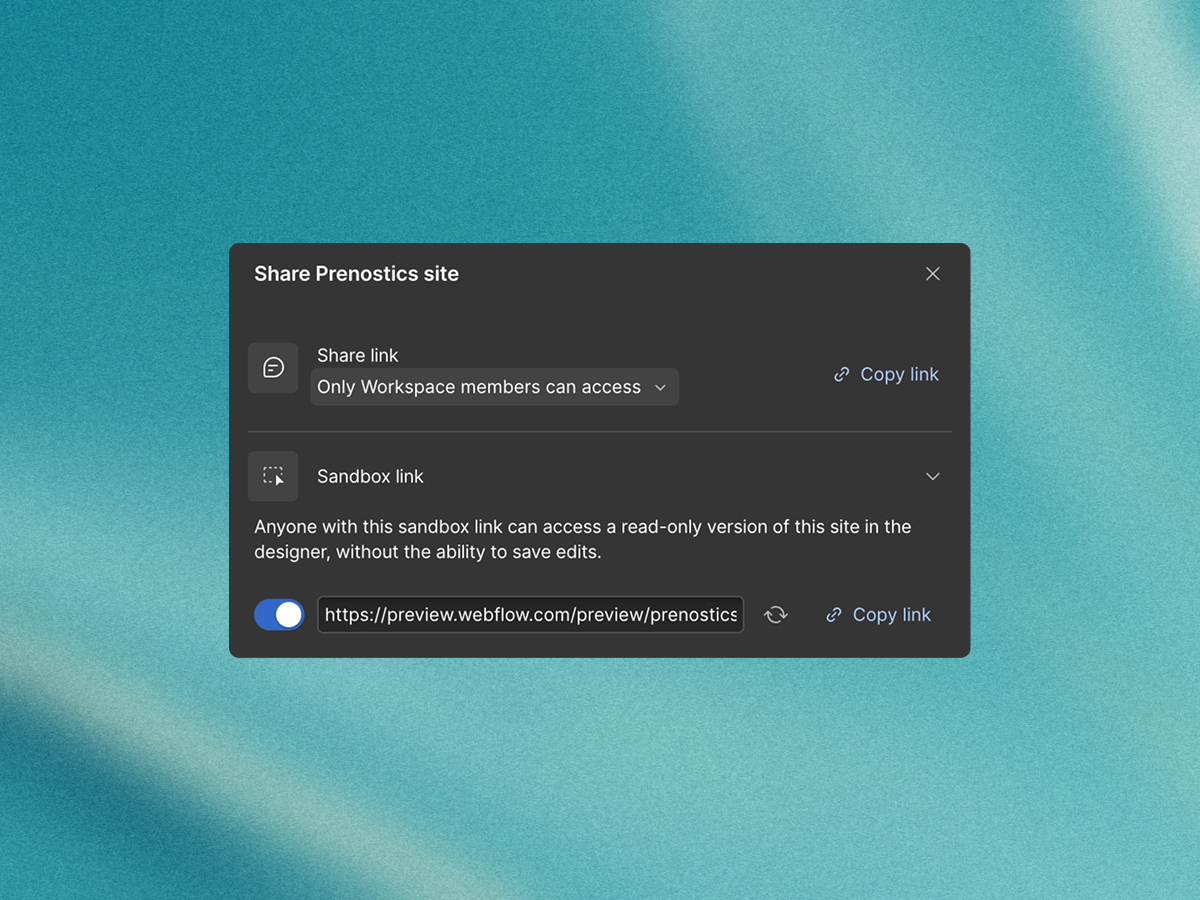
Now called a sandbox link, it lets them look around your website in the Designer and understand how it’s built. Any changes they try won’t be saved to your site.
You stay in control of the link. You can turn it off when the review is finished, or generate a new link to stop the old one working. Anyone who has the active link can view the site in Webflow, so only share it with people you want to have that access.
1. Log in to Webflow
Go to Webflow.com and log in to your account. Open your Dashboard, where you’ll see the websites you have access to.
2. Open your website in the Designer
Find the website you want to share and open it in Webflow. You need to be inside the Designer, where you work on the website, rather than viewing the published website in your browser.
If you can’t find the website, check that you’re in the correct Workspace. If someone else manages it, you may need to ask them for access or ask them to create the sandbox link for you.
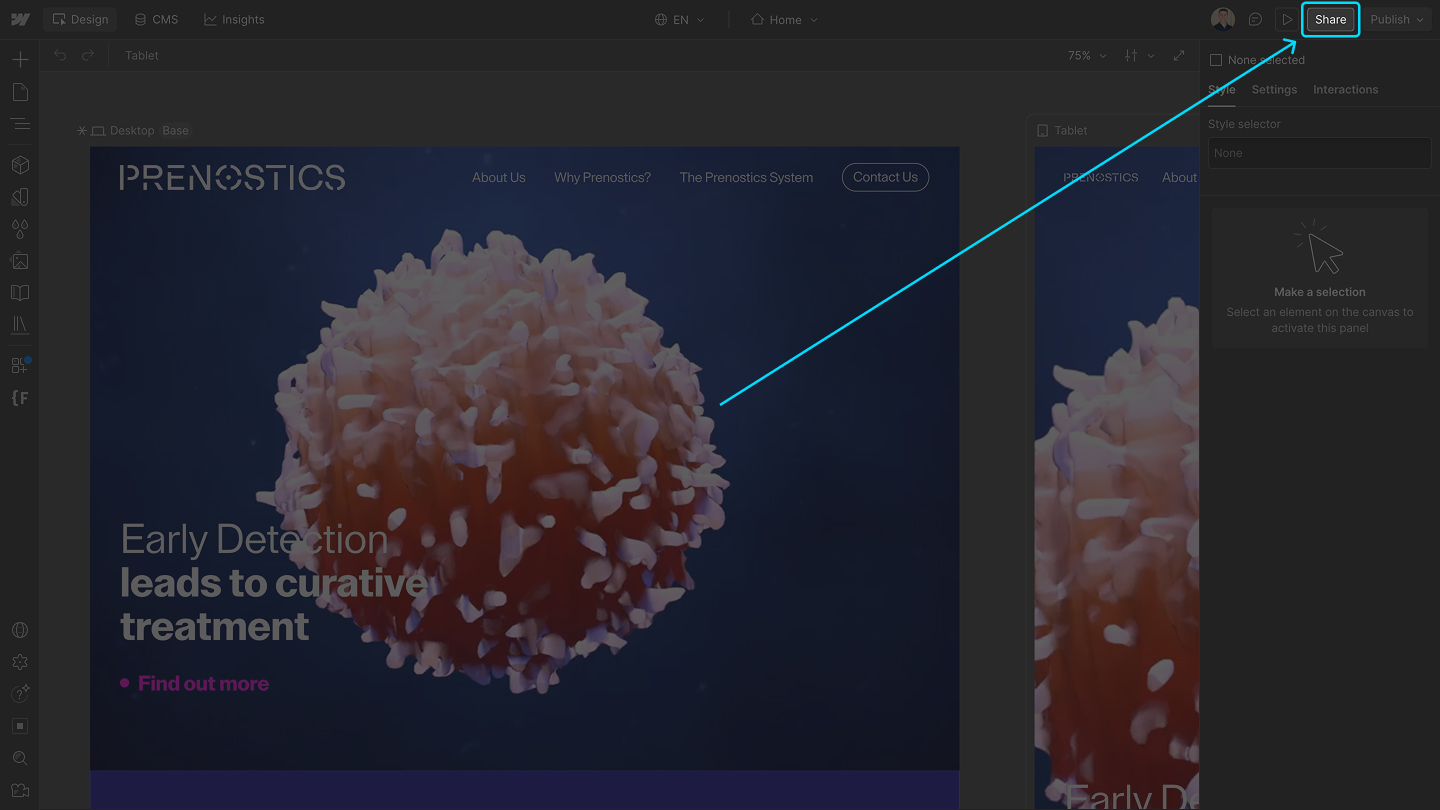
3. Click Share
Look towards the top right of the Designer for the Share button, next to Publish. Click Share to open the sharing options.
4. Choose Sandbox link
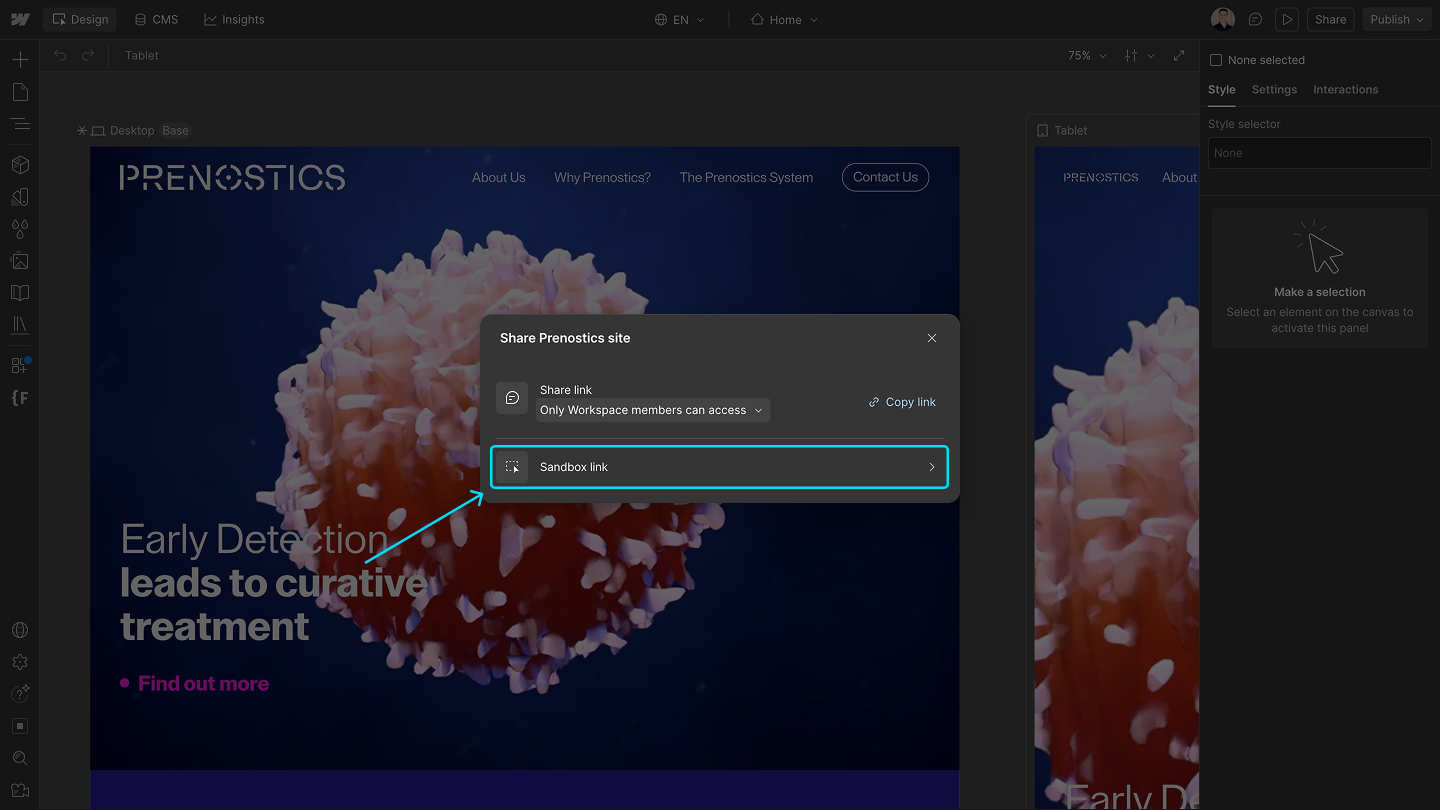
You’ll see several ways to share the website, including inviting someone by email, a Share link and a Sandbox link. Choose Sandbox link.
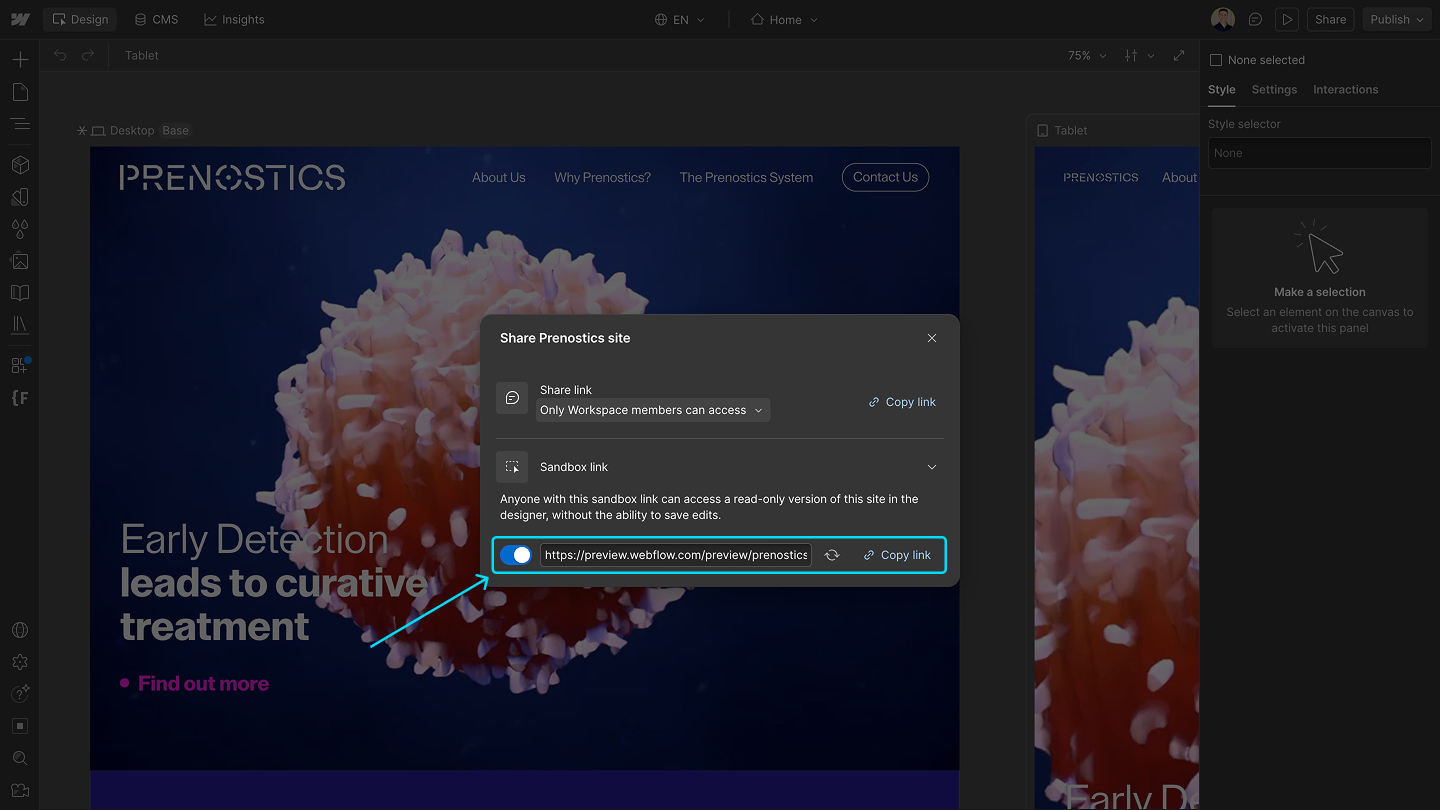
This is the option you need when someone asks for a Webflow read-only link. It lets them open a read-only version of the website in the Designer without being able to save edits.
5. Turn it on and copy the link
Turn on the Sandbox link toggle. Webflow will generate a link for your website.
Click the copy icon beside the link, then paste it into your email or message to the person who needs to view the site.
Anyone with this link can access the sandbox, so share it with the people you want to review your website. They can explore the site and try temporary changes, but those changes won’t be saved.
How to turn off or replace your sandbox link
To stop sharing, return to Share → Sandbox link and turn the toggle off.
If you’ve shared a sandbox link and want to stop people using that link, return to Share → Sandbox link and use the option to generate a new sandbox link.
This replaces the previous link. Copy the new one and send it only to the people who should still have access.
For Webflow’s own instructions, see its guide to sharing a sandbox site link.
Frequently asked questions
Sandbox link is the current name for the Webflow sharing option previously called a read-only link. Both terms refer to a way of letting someone explore your site in the Designer without saving their edits. In the current Share menu, choose Sandbox link when someone asks for a read-only link.
A Webflow sandbox link lets a developer, agency or colleague inspect how your website is built. It is useful for investigating problems, reviewing a site or assessing proposed changes. Unlike a link to the published website, it lets the recipient explore the build inside Webflow.
Yes. Open Share → Sandbox link in the Designer and turn the toggle off to stop sharing. To keep sharing with selected people, generate a new sandbox link and send them the replacement. The previous link will stop working. This does not remove anything someone has already viewed or captured.
The main risk is visibility: anyone with the active link can view your site in Webflow and could forward the link to someone else. Their temporary edits are not saved, but the link is not a confidentiality control. Before sharing, consider whether the site contains work or information you do not want the recipient to see. Share it with trusted people and turn it off when it is no longer needed.
Lorem ipsum dolor sit amet, consectetur adipiscing elit, sed do eiusmod tempor incididunt ut labore et dolore magna aliqua. Ut enim ad minim veniam, quis nostrud exercitation ullamco laboris nisi ut aliquip ex ea commodo consequat. Duis aute irure dolor in reprehenderit in voluptate velit esse cillum dolore eu fugiat nulla pariatur.
Lorem ipsum dolor sit amet, consectetur adipiscing elit, sed do eiusmod tempor incididunt ut labore et dolore magna aliqua. Ut enim ad minim veniam, quis nostrud exercitation ullamco laboris nisi ut aliquip ex ea commodo consequat. Duis aute irure dolor in reprehenderit in voluptate velit esse cillum dolore eu fugiat nulla pariatur.
Lorem ipsum dolor sit amet, consectetur adipiscing elit, sed do eiusmod tempor incididunt ut labore et dolore magna aliqua. Ut enim ad minim veniam, quis nostrud exercitation ullamco laboris nisi ut aliquip ex ea commodo consequat. Duis aute irure dolor in reprehenderit in voluptate velit esse cillum dolore eu fugiat nulla pariatur.
Lorem ipsum dolor sit amet, consectetur adipiscing elit, sed do eiusmod tempor incididunt ut labore et dolore magna aliqua. Ut enim ad minim veniam, quis nostrud exercitation ullamco laboris nisi ut aliquip ex ea commodo consequat. Duis aute irure dolor in reprehenderit in voluptate velit esse cillum dolore eu fugiat nulla pariatur.
Lorem ipsum dolor sit amet, consectetur adipiscing elit, sed do eiusmod tempor incididunt ut labore et dolore magna aliqua. Ut enim ad minim veniam, quis nostrud exercitation ullamco laboris nisi ut aliquip ex ea commodo consequat. Duis aute irure dolor in reprehenderit in voluptate velit esse cillum dolore eu fugiat nulla pariatur.